CheesyArena FMS
The CheesyArena FMS (Field Management System) is a software tool used at our field to manage connections between the driver station laptops and robots practicing on the field. It is developed by FRC Team 254 and is available on their GitHub.
Team Setup
The main FMS software runs on a Raspberry Pi 4 that is connected to the main field network switch. The driver stations connect to the FMS via the ports installed on each driver station desk. The FMS also connects to the VH 109 Radio on the wall above the field.
The FMS Web Interface is hosted on http://10.0.100.5:8080 and can be accessed from any computer connected to the field management LAN. This network can be accessed via the FMS Management Wifi or by plugging into the LAN port on the field network switch. Once you arrive on the web interface, navigate to the Match Play menu.
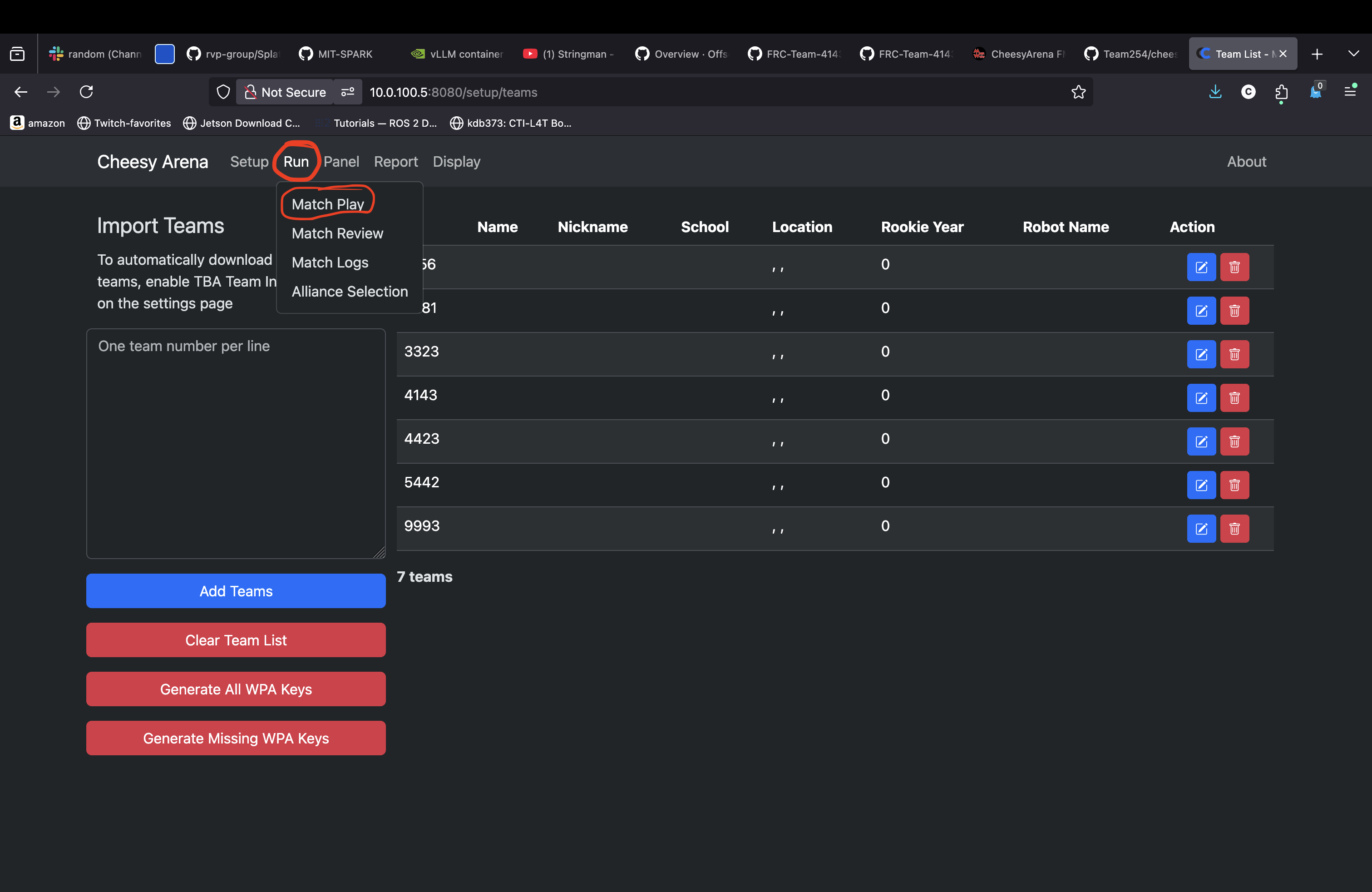
Once you are on the Match Play screen, the team numbers and ports need to be assigned. First, make sure the driver stations have been connected to one of the ports on the driver station wall.
Once the driver stations are connected, configure the field with the following steps:
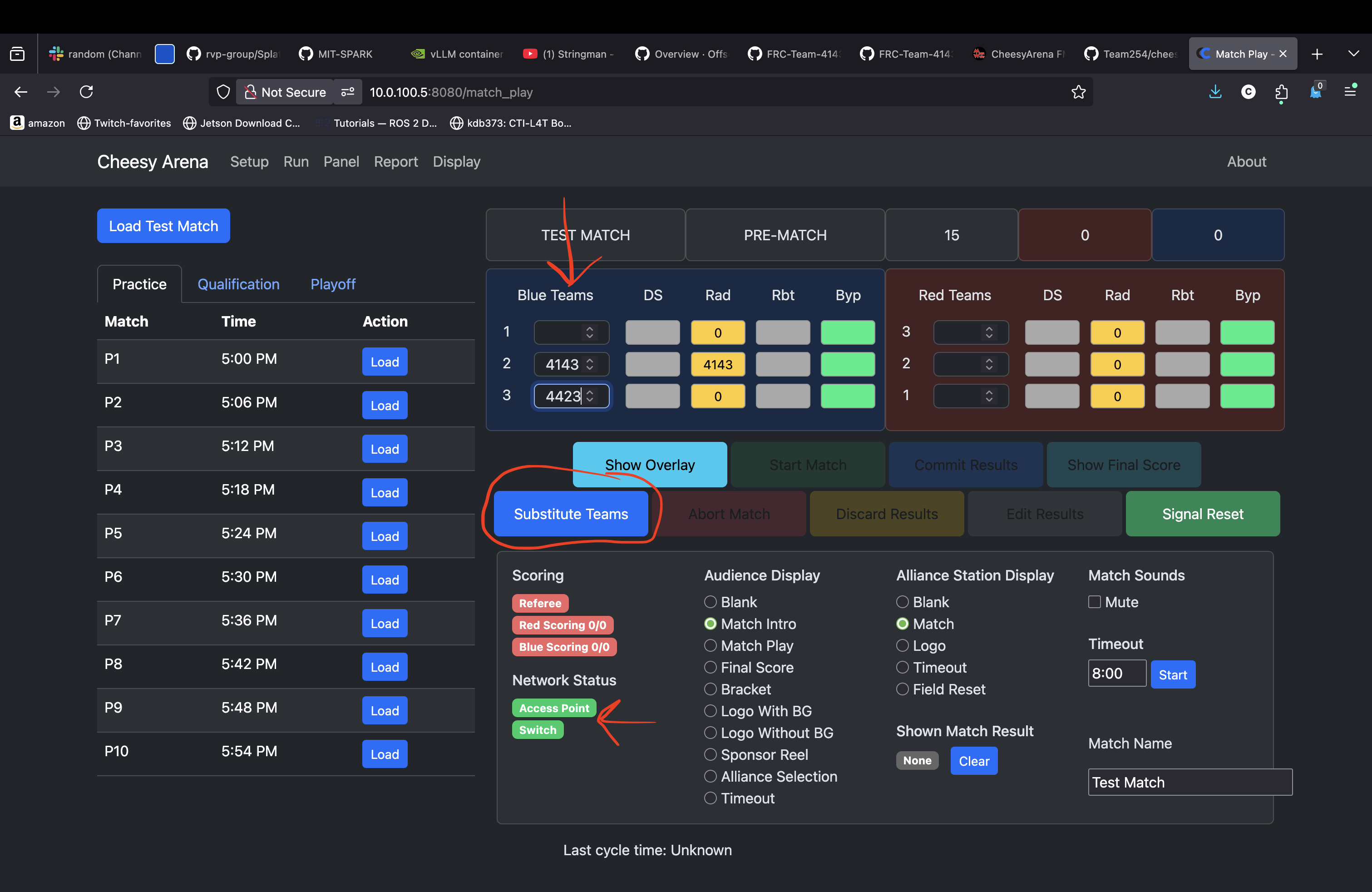
- Enter the team numbers for each port. The blue alliance side of the field is closest to the classrooms.
If you do not press enter after editing the last team number, it may not apply the last team you entered.
- Press the button labeled "Substitute Teams" to configure the FMS switch and Radio.
- After 30 seconds to a minute, the driver stations should be able to connect to robots on the field.
If you do not intend to run a match, the PI can now be powered down to release control of the driver stations back to the on-screen controls.
Here is an example of what the UI looks like when configuring a match.
Running Practice Matches
If you intend to run practice matches, it is recommended to turn on the field display PI.
- Turn on the projector.
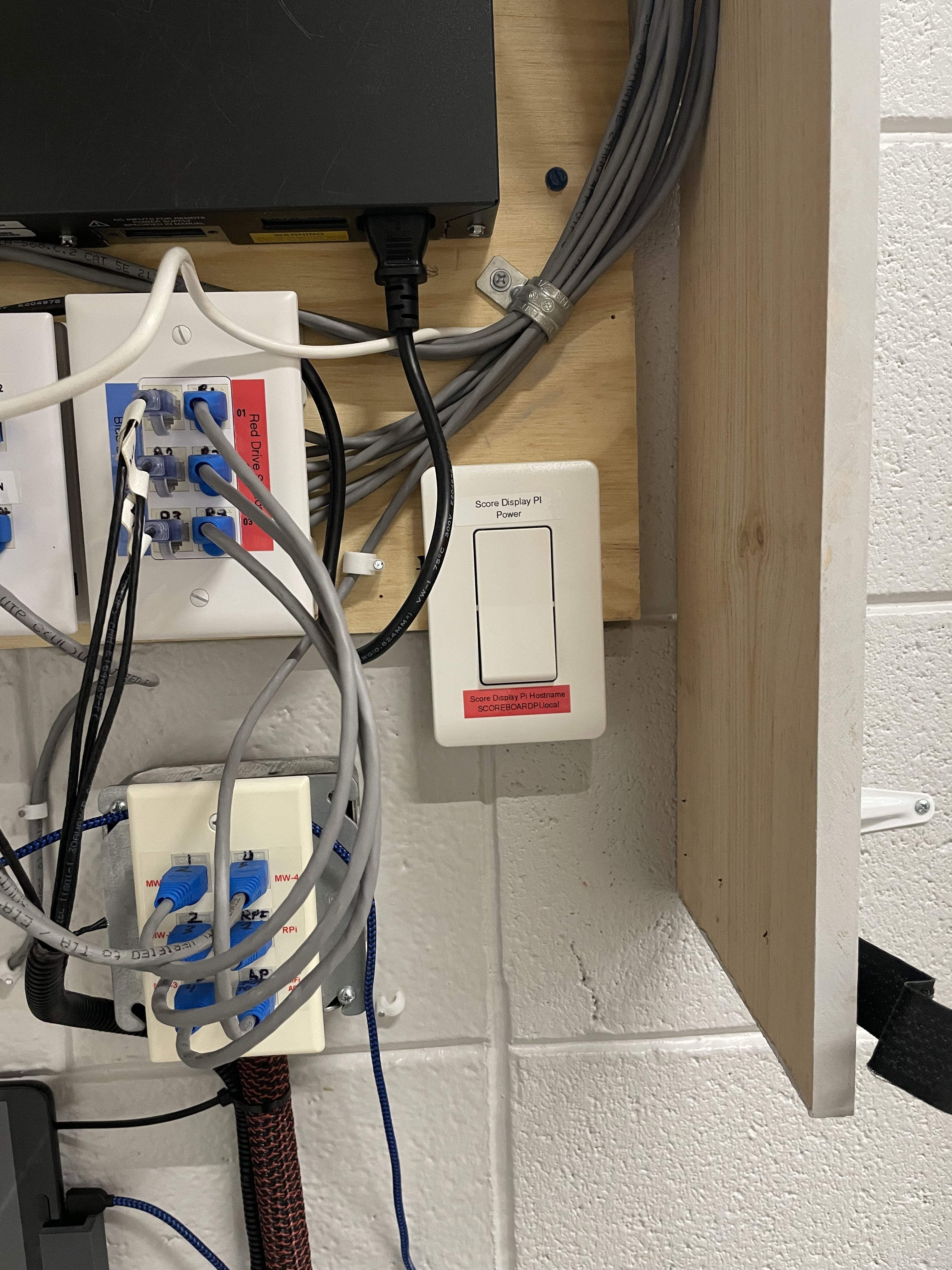
- Use the wireless switch in the FMS cabinet to turn on the display PI.
- Turn on the speakers to get match sounds to play.
Once the display has been turned on, and the FMS configured using the team setup instructions, you can prepare for the match.
- Make sure the robots that have been configured in the match have their driver stations and robots connected.
- Make sure the robots have been setup for their respective autos.
The FMS does not allow the user to disable the autonomous match period. Make sure everyone is aware that autos will run.
- When each team / robot is ready, give an audible countdown. When the count hits "GO", press the start match button.
- If at any point the match needs to be stopped, select the Abort Match button.
- Once the match completes, select discard results, then signal reset to re-run the match.
Login Information
For normal operation, you only need access to the management WiFi or LAN to configure the field.
FMS Management WiFi
- SSID: MW-FMS-MANAGEMENT
- PASS: Ask a Mentor
For updating the FMS PI:
- USER: firstmentor
- PASS: Test.123
For the Display PI:
- USER: firstmentor
- PASS: Test.123
Troubleshooting
If a robot is unable to connect to the field radio, make sure that the radio has been configured correctly. You will need to navigate to the FMS reports tab, then select the WPA Keys option. This will download a CSV file with each team number and its associated 6GHz WiFi key. Once the report has been downloaded, update the WPA keys in accordance with the VH 109 Radio configuration instructions.