Arbor
Arbor is the editor for our autonomous routines. Our autos are behavior trees, and Arbor is where you build them, watch them run on the robot node by node, and replay a recorded run afterwards. It is a web app served by a small local server, also packaged as a desktop app, and it is the tool the autonomous lesson in Scriptum uses.
Installing
Download the desktop app for your machine from the
Arbor releases page: .AppImage on Linux, .dmg on macOS, .exe
on Windows.
Opening the Robot's Autos
An Arbor project is a folder with a bt_project.json, a nodes.xml and a trees/ folder. The robot project's
src/main/deploy/autos/ is exactly that, so open it:
- Open project and pick
mainbot-4143-2026/src/main/deploy/autos. - The left palette lists every node the robot knows, from
nodes.xml: the BehaviorTree built-in nodes, MWLib's shared nodes (FollowTrajectory,ParallelDeadline, ...) and the robot's own (SetWantedStatewith the robot's states as a drop-down,SetIntakeState, ...). - Each file in
trees/is a tab.common.xmlholds the shared sub-trees (IntakeOnEvent,ShootFor).
Drag nodes from the palette onto the canvas, connect them under a Sequence or Fallback, and fill in the ports
(trajectory, state, msec) in the inspector on the right. Right-click a node for Wrap in… (to put a
Timeout or RetryUntilSuccessful around it), and drag a tree from the Trees list onto a node to use it as a
SubTree. Keep the Problems panel empty. Ctrl+S saves to trees/<Name>.xml, the file the robot runs; you
never need to edit it by hand. Naming, shared sub-trees and tunable values are on the
Autonomous page.
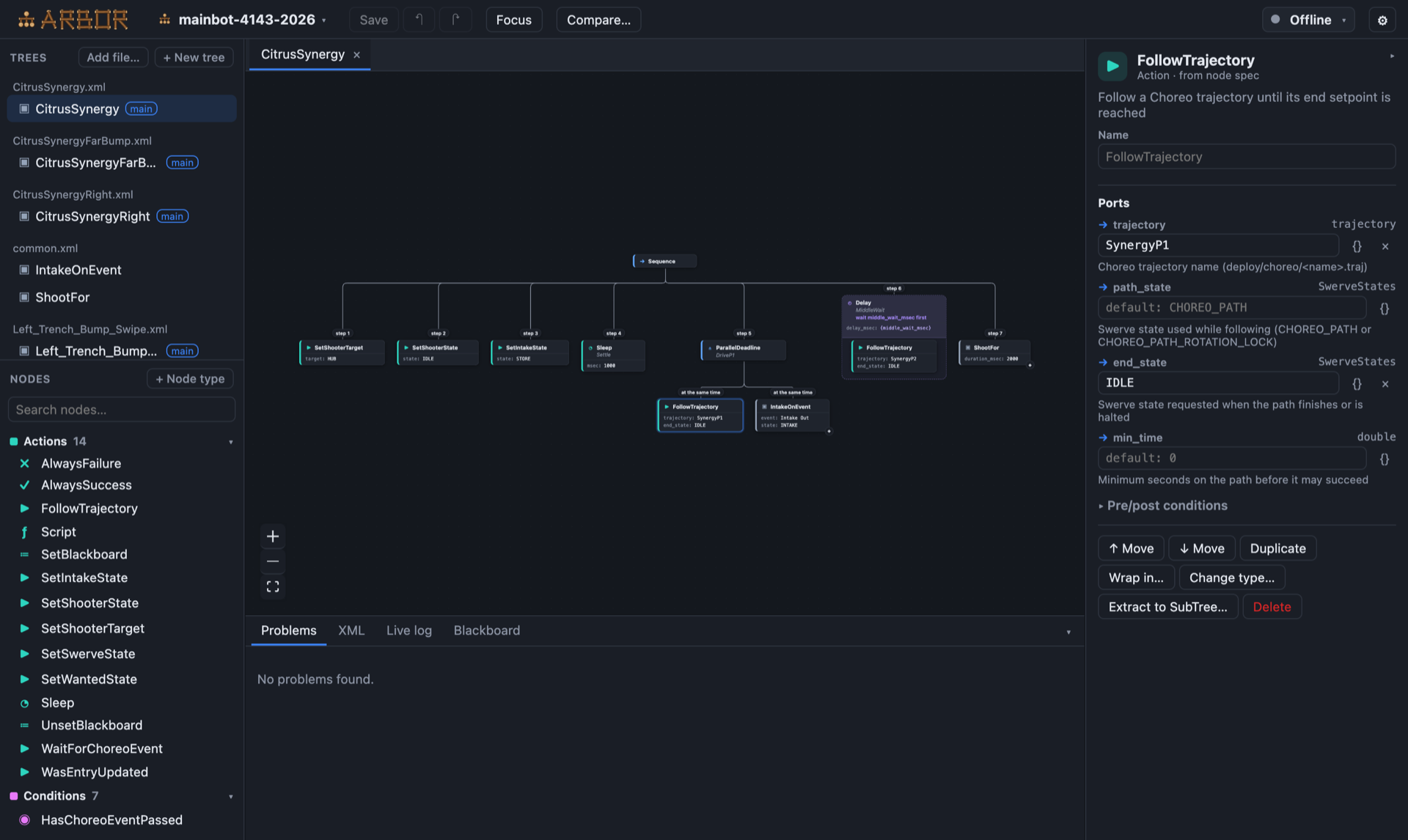
The 2026 robot's CitrusSynergy auto open in Arbor
If a node you just added to AutoNodes.java is missing from the palette, regenerate nodes.xml with
./gradlew test -PupdateNodeSpec in the robot project and reload the project in Arbor.
Live View
Arbor connects to the robot and colours the tree as it runs: orange for running nodes, green and red for succeeded and failed ones, faded colours for results from before the last reset. The live log tab lists every transition; click one to jump to its node.
- The address is in
bt_project.json("live": {"url": "ws://localhost:1670"}). On the real robot usews://10.41.43.2:1670; in simulation,ws://localhost:1670. - The robot code starts the server in
Robot()withBtLiveServer.start(...); it is on in mainbot already. - Arbor's own backend makes the connection, so the robot only has to be reachable from the computer running Arbor.
- A badge warns when the tree running on the robot does not match the one you have open, which means you edited without re-deploying or re-selecting the auto.
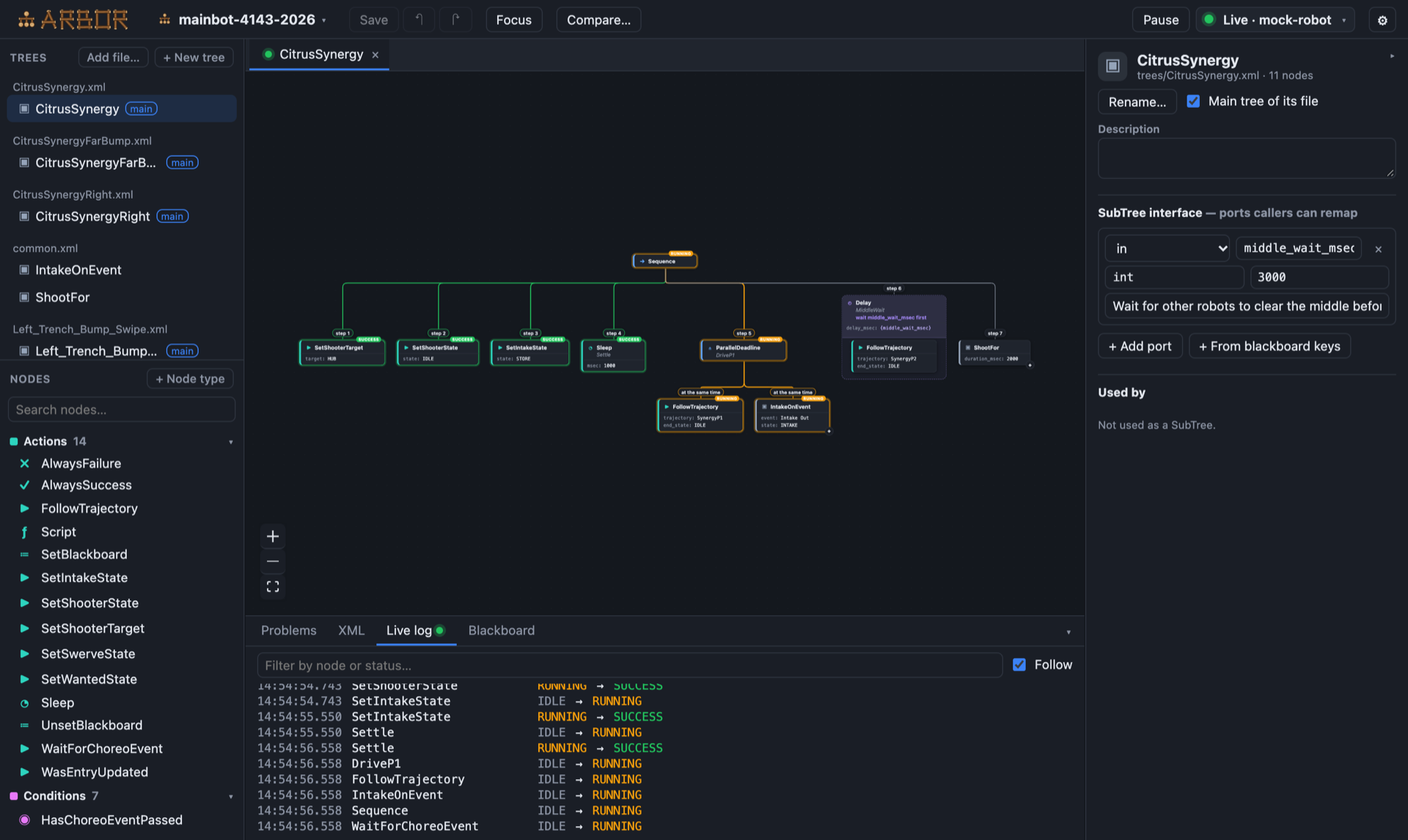
Live view during CitrusSynergy: the first four steps have succeeded, and the robot is driving the first path
(DriveP1) with the intake running beside it. The live log below lists each transition.
Replaying a Run
Every auto run writes a <auto>_<date>_<time>.btlog file (BehaviorTree.CPP's FileLogger2 format) to /U/logs/bt
on the robot's USB stick, or logs/bt in simulation. Copy it off and either choose Replay a log file (.btlog)… from
the project menu (click the project name, top left) or drag the file onto the Arbor window. The replay bar steps through the run: play/pause (Space), step (←/→), skip a second
(Shift+←/→), start/end (Home/End), speed from 0.1× to 10×. A log holds node statuses only, no blackboard values; for
those, open the matching AdvantageKit log in AdvantageScope at the same time.
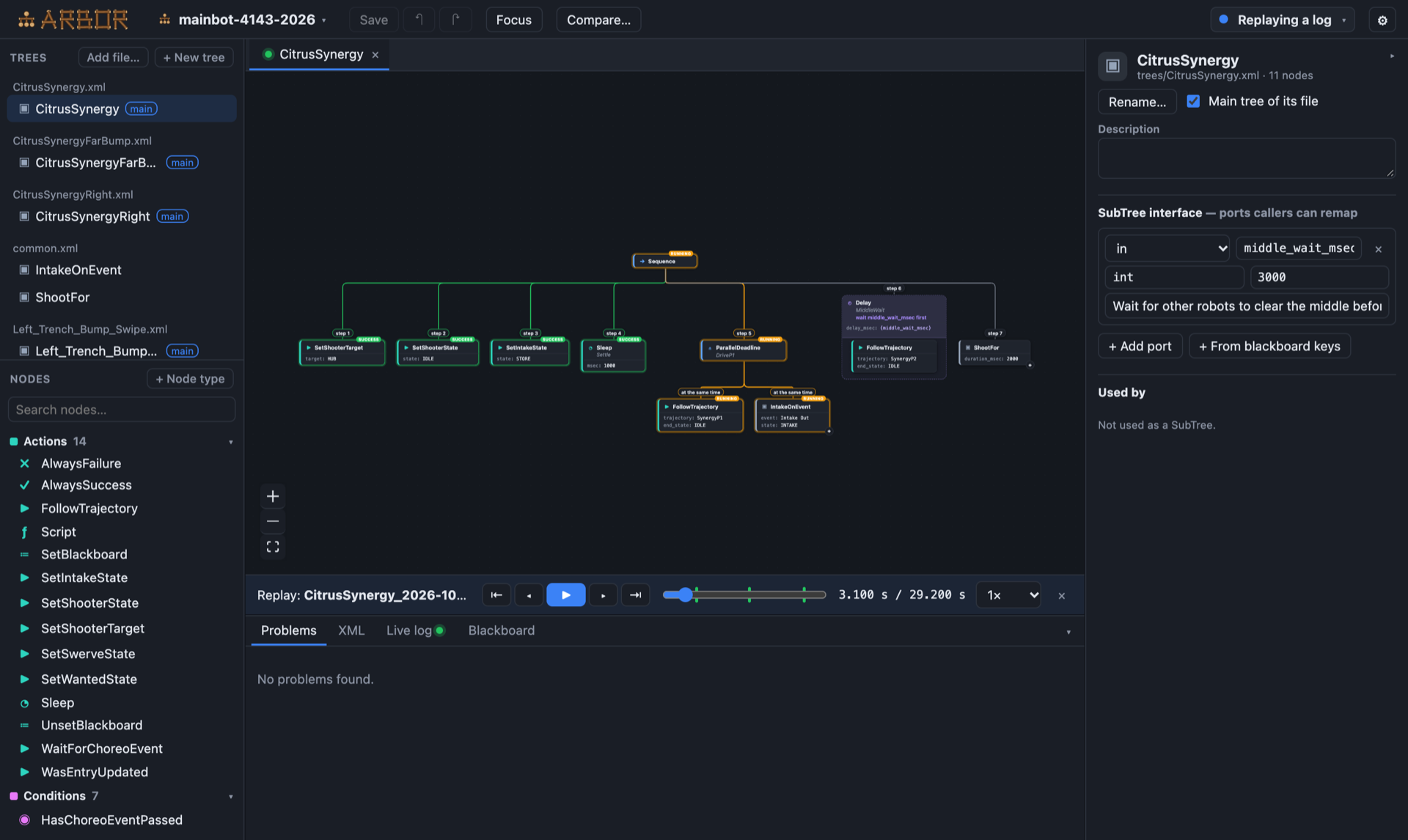
A CitrusSynergy log replayed, paused 3.1 s into the run on the first path.
In Scriptum
Scriptum has an Arbor tab next to the editor, with the live view already pointed at the simulated robot, so you can
build a tree and watch it run without installing anything. The Arbor lesson in the Tools track teaches the tool:
you make your own tree, fill in a few steps, protect one with a Timeout and a Fallback, and declare a tunable
value. The Autonomous lesson then uses Arbor to build the real routine.
If the tab opens on Arbor's welcome screen instead of a project, choose Open project and pick
src/main/deploy/autos; Arbor only opens it by itself when that folder already existed as the workspace started.
Related Documentation
- Autonomous: how the trees are written and what the nodes do.
- Choreo: the paths
FollowTrajectorydrives. - AdvantageScope: the
BehaviorTree/*log keys.